Overlay control
Use this page to trigger visual effects in the right place on stream with game-board context.
1) Overlay control entry point
Open overlay control from the dashboard entry point.
2) Animation active area
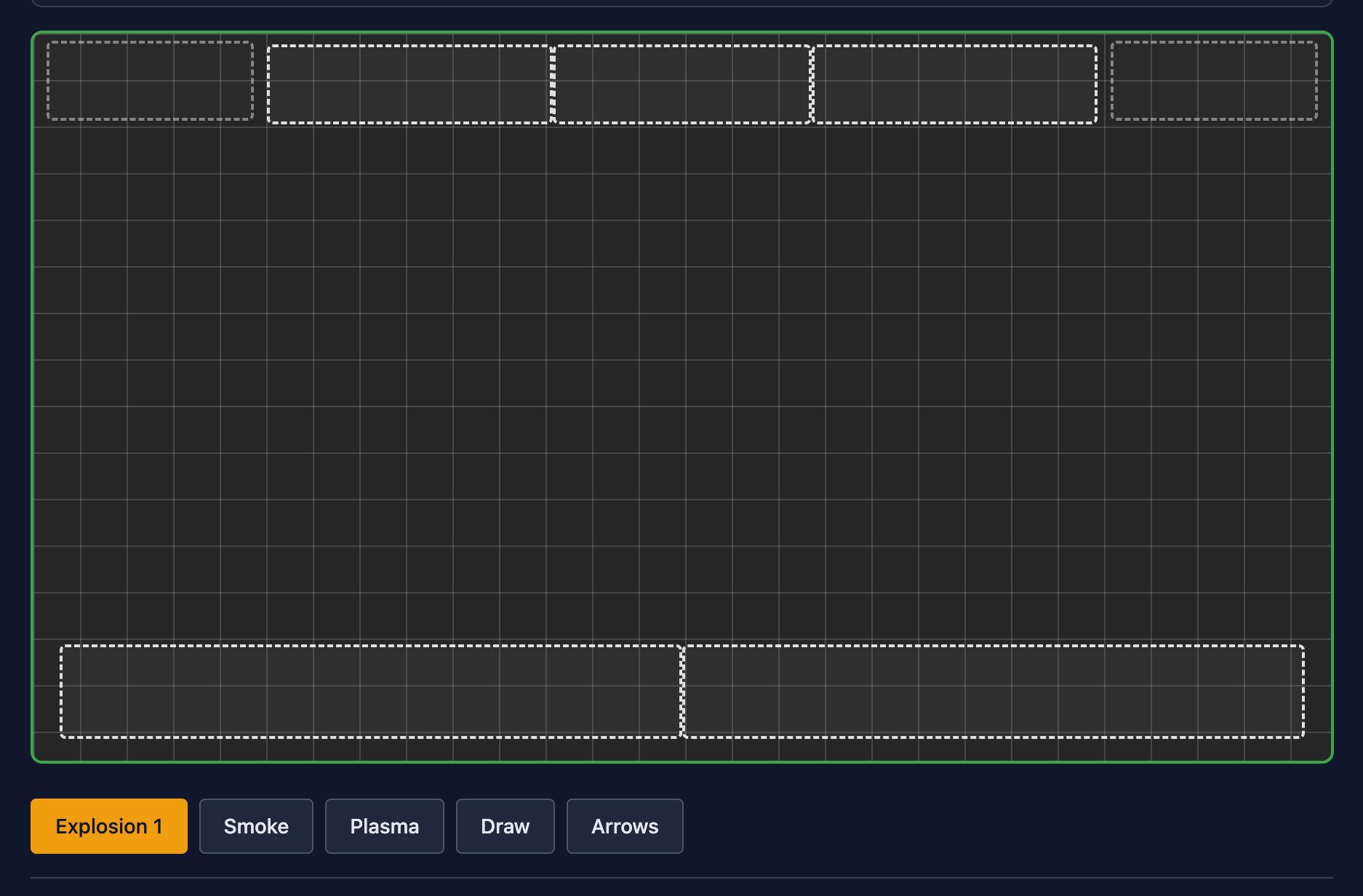
Select an animation, then click in the game area to trigger it. Some animations require two clicks to define start and end points on screen. Draw animation allows custom drawing inside the active area.
3) Add game board area
Use add game board to define the table area rendered on the overlay control page. You can control overlay visibility here to position it correctly.
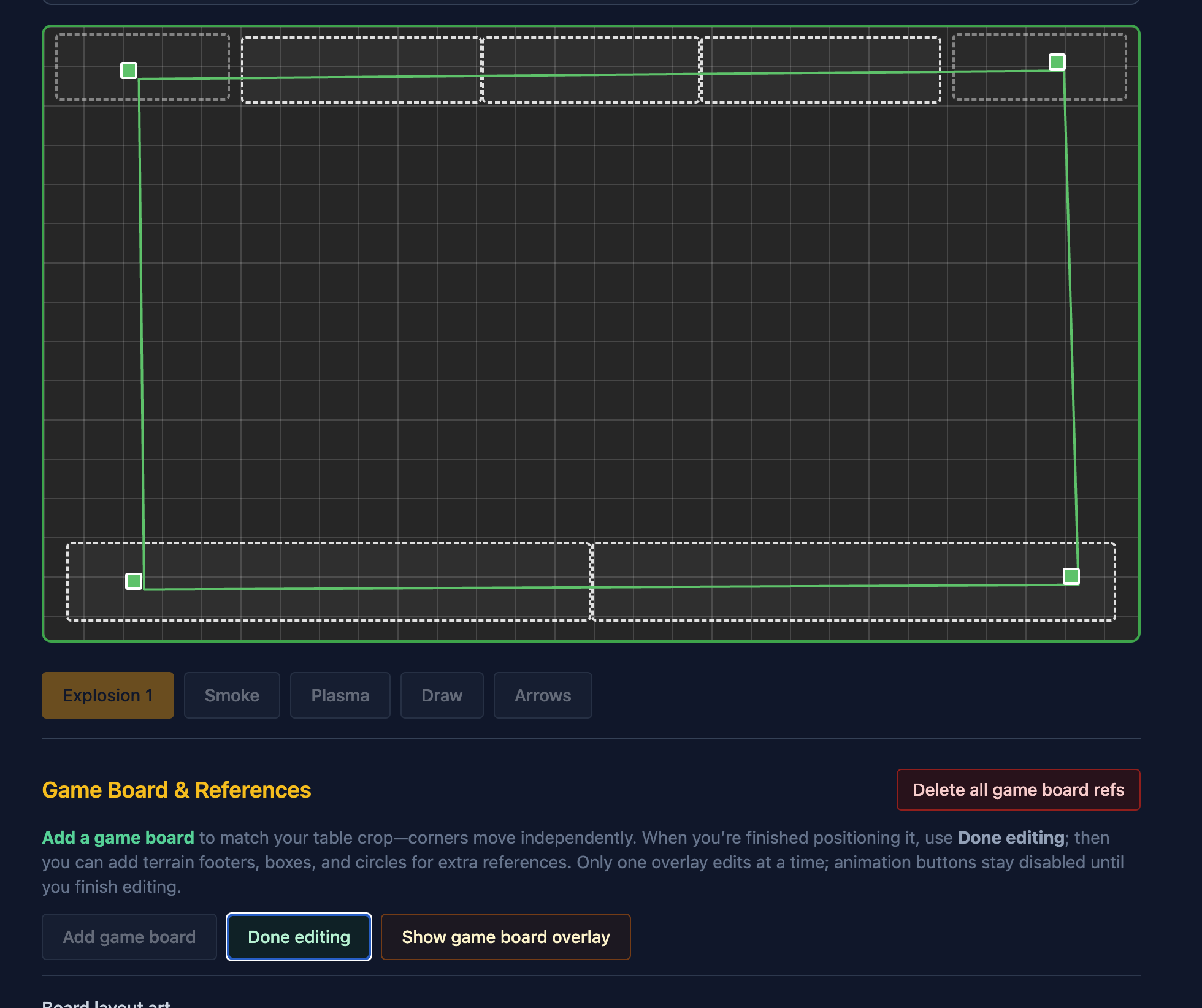
4) Presets and map reference
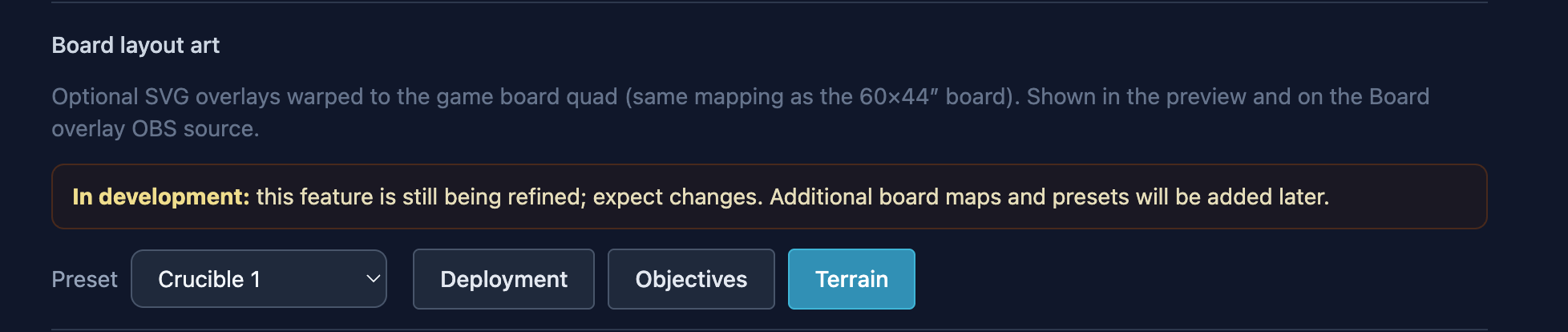
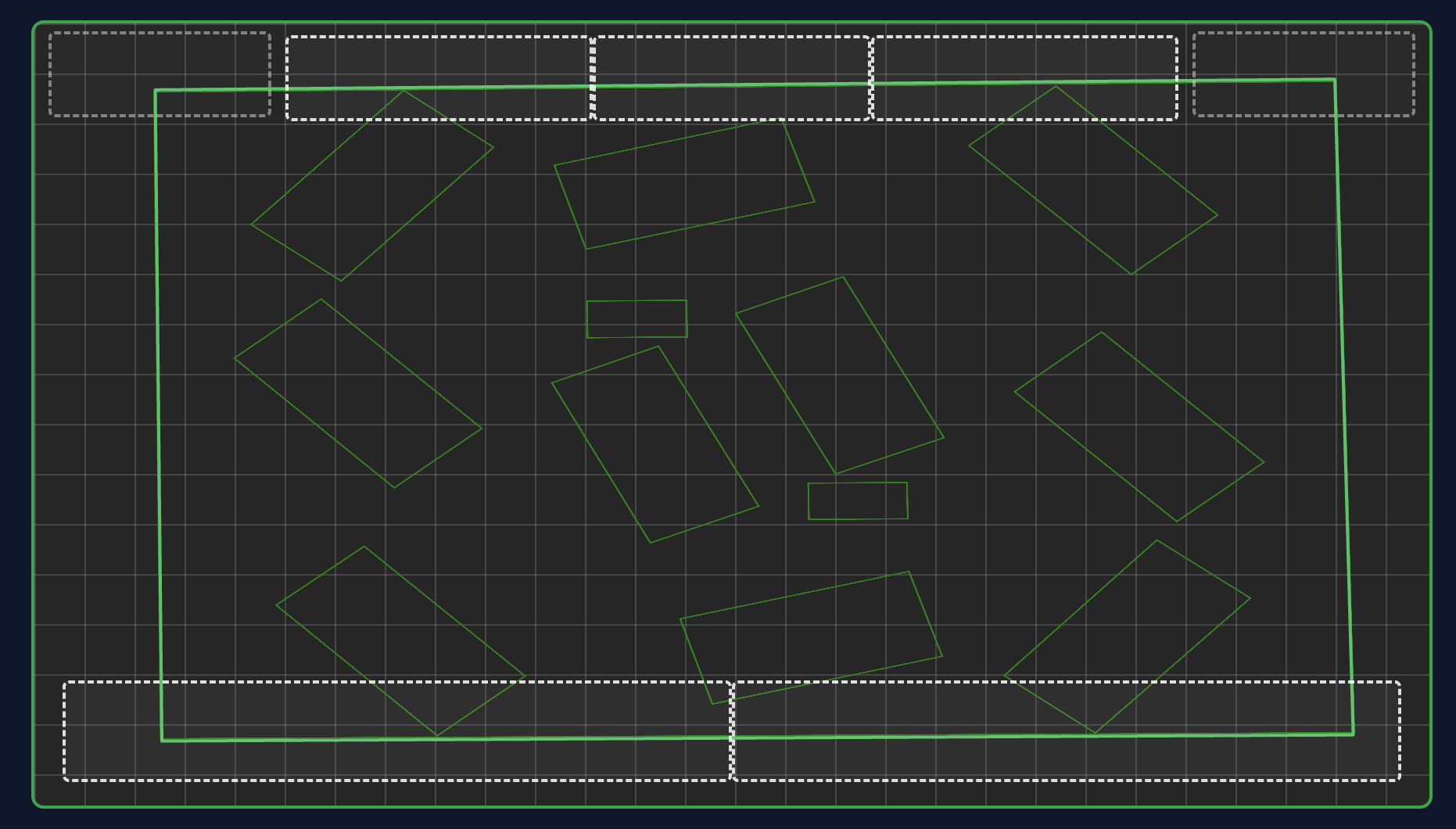
Once a game board is added, you can add a preset. This is still under development, but it positions objectives, deployment, and terrain on the defined board area. The goal is to give overlay control context of the game space so animations are triggered in the right area.