OBS browser source overlay for Warhammer 40K
If your overlay looks blurry, cropped, or “almost right”, it’s usually a browser-source sizing issue. This is the reliable baseline setup.
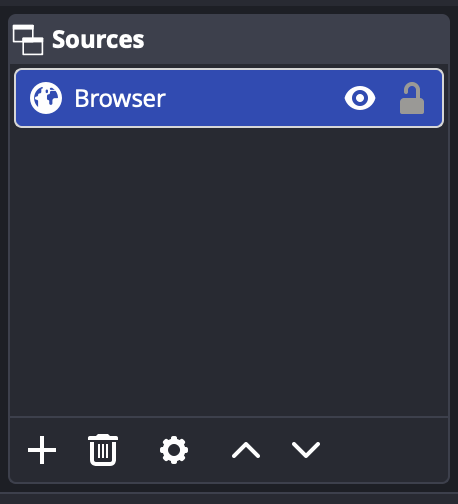
1) Add a Browser source
In OBS, add a Browser source to the scene you use for your overlay.
2) Set 1920×1080 (width/height)
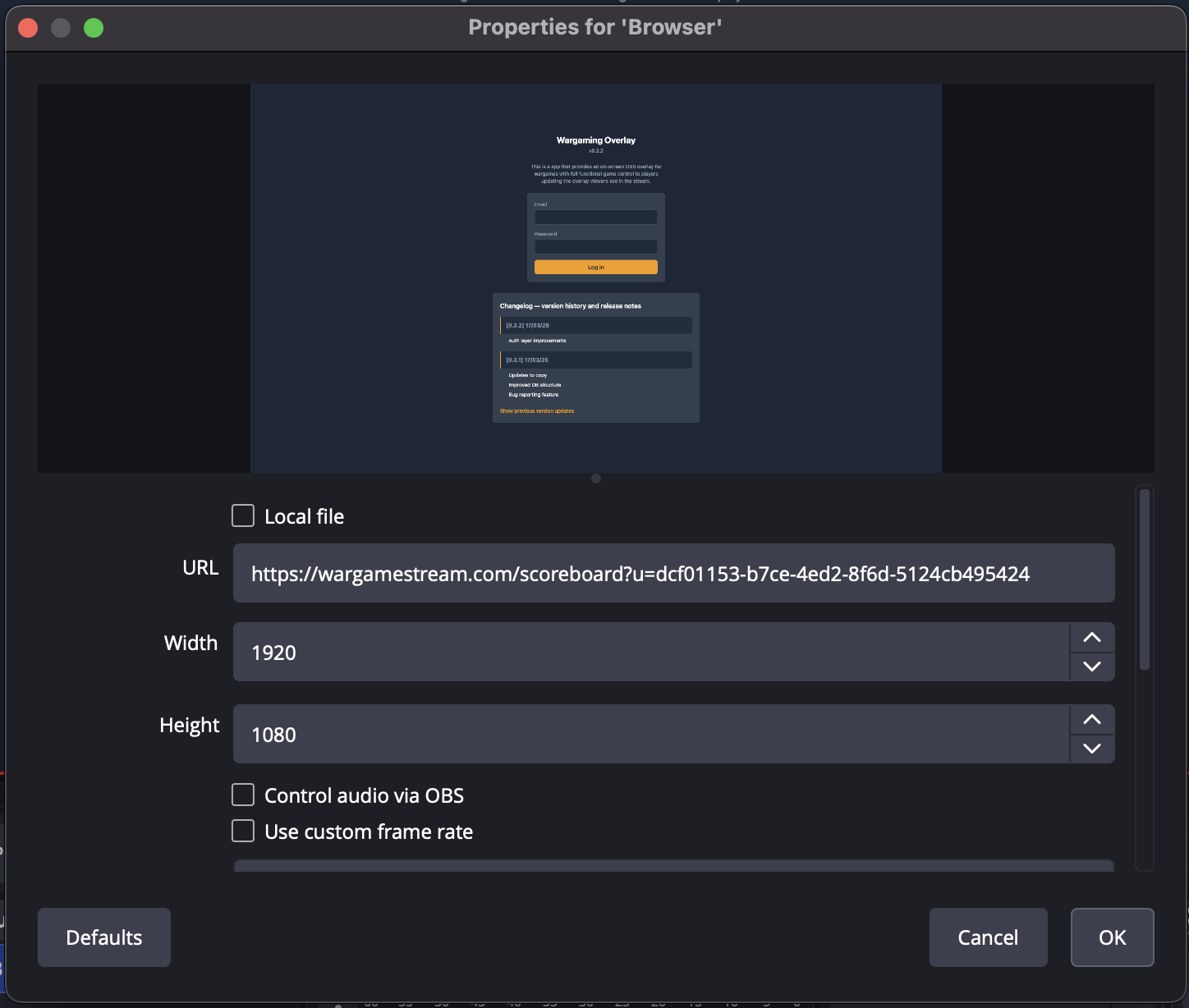
Set the browser source resolution to 1920 × 1080. This matches standard 16:9 streaming output and avoids layout breakage.
3) Paste the overlay URL
Get your overlay URL from the app, paste it into the Browser source URL field, then click OK/Apply.
Create an account (or log in) to generate your URL.
4) Interact (sign in) and verify the page loads
If your overlay needs authentication, use Interact on the Browser source to sign in, then open the scoreboard from the dashboard or the URL.

5) Order the source in your scene
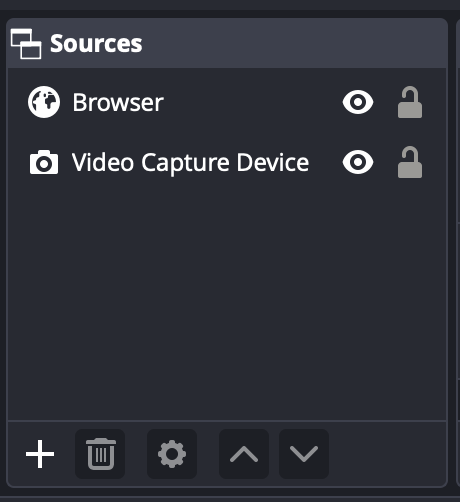
Move the overlay Browser source above game capture/cameras in the scene source list so it displays on top.
Next: add a readable scoreboard
Once the browser source is stable, the next win is keeping score legible and easy to update.
Read the overlay resolution guide